
Although Chit Chats is optimized for printing labels on Zebra programming language (ZPL) thermal printers, there is still a way to use your non-ZPL thermal printer when working with a Windows computer or a Mac computer.
Connect your printer
If you have already configured your printer for your computer, please skip to the next section.
Before you begin the printer setup, ensure that your printer is connected to your computer and a power source. For the most accurate information, please follow the specific instructions in your printer's manual. You should be prompted to install the printer driver after connecting to your computer. If not, you can do a quick search for the driver online or use this tool to find the appropriate driver.
For Mac users, add the printer via System Preferences:
Navigate to System Preferences > Printers
Click the ‘+’ to add the printer (provide password of an administrator account if necessary). Select your printer from the list of printers.
For the driver click “Select Software” and choose your printer from the available options.
You can make a test print from your printer settings to make sure it is properly connected. If you experience difficulties with connecting your printer, we recommend contacting your printer’s manufacturer for technical support.
Connecting to Chit Chats Printer App
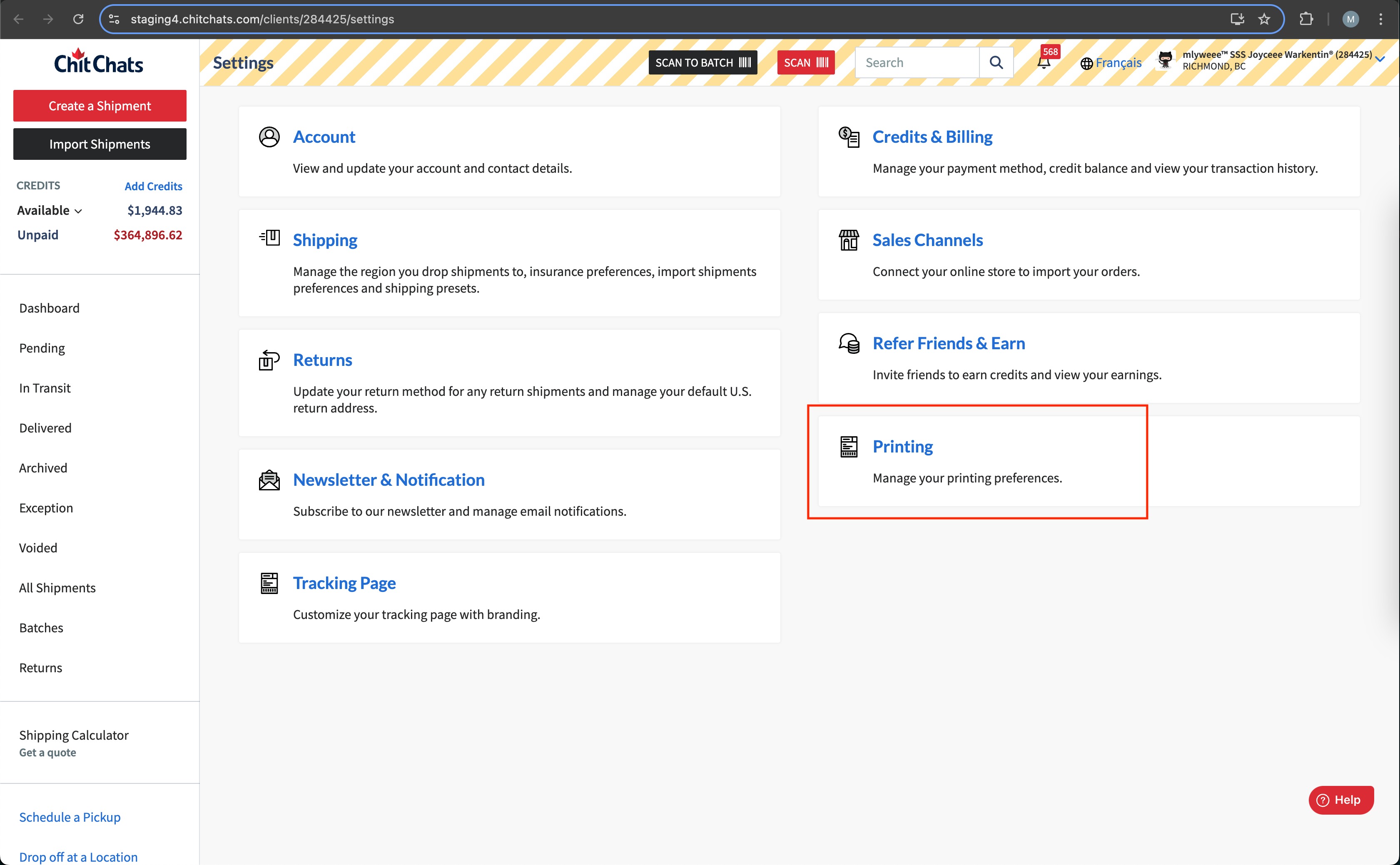
Go to your Shipping settings. Settings (left sidebar) > Printing .
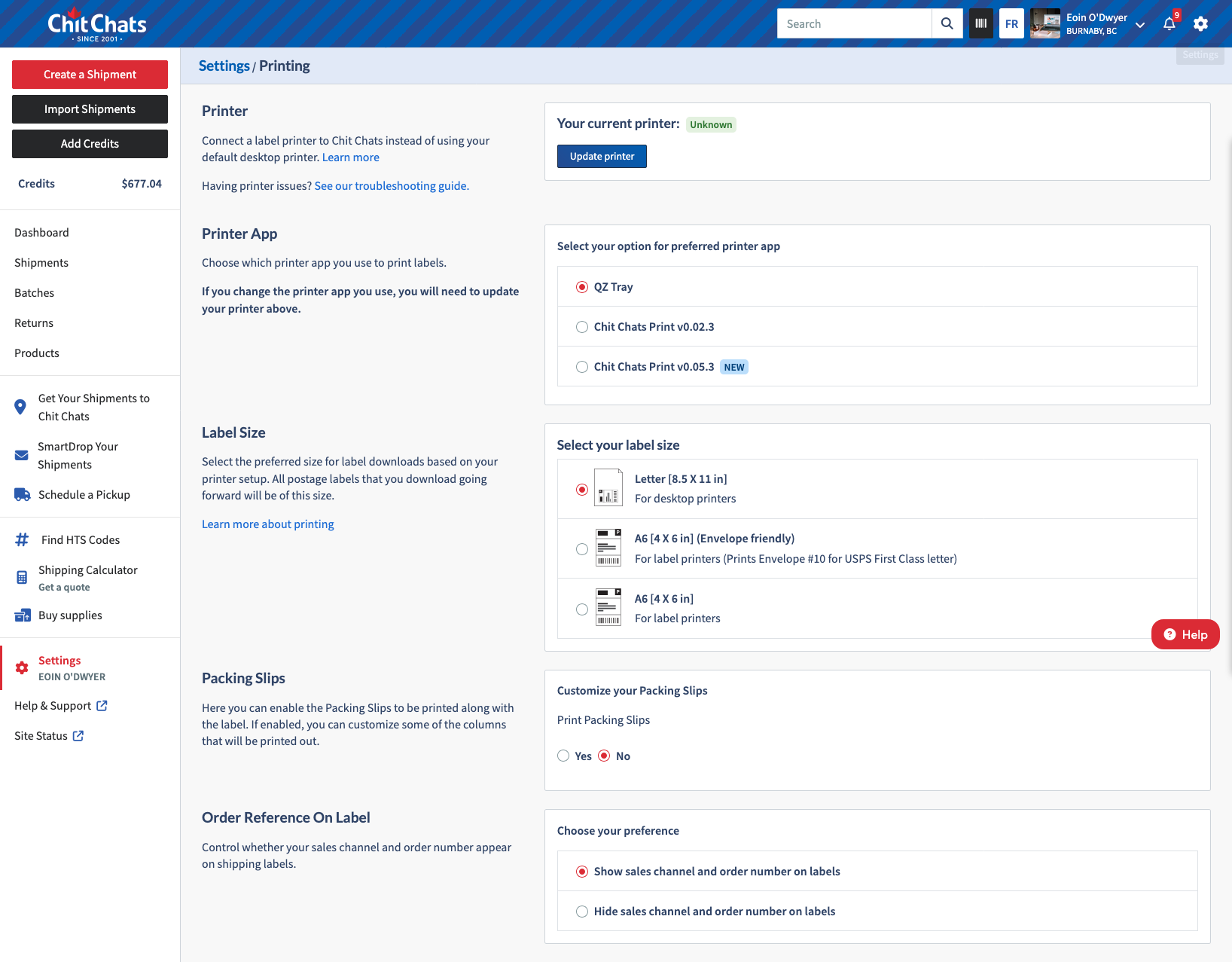
Under the Printer App section on the right hand side, select 'Chit Chats Print App’. Select what version that you would like to use.
Download and install the app applicable to your computer’s software.
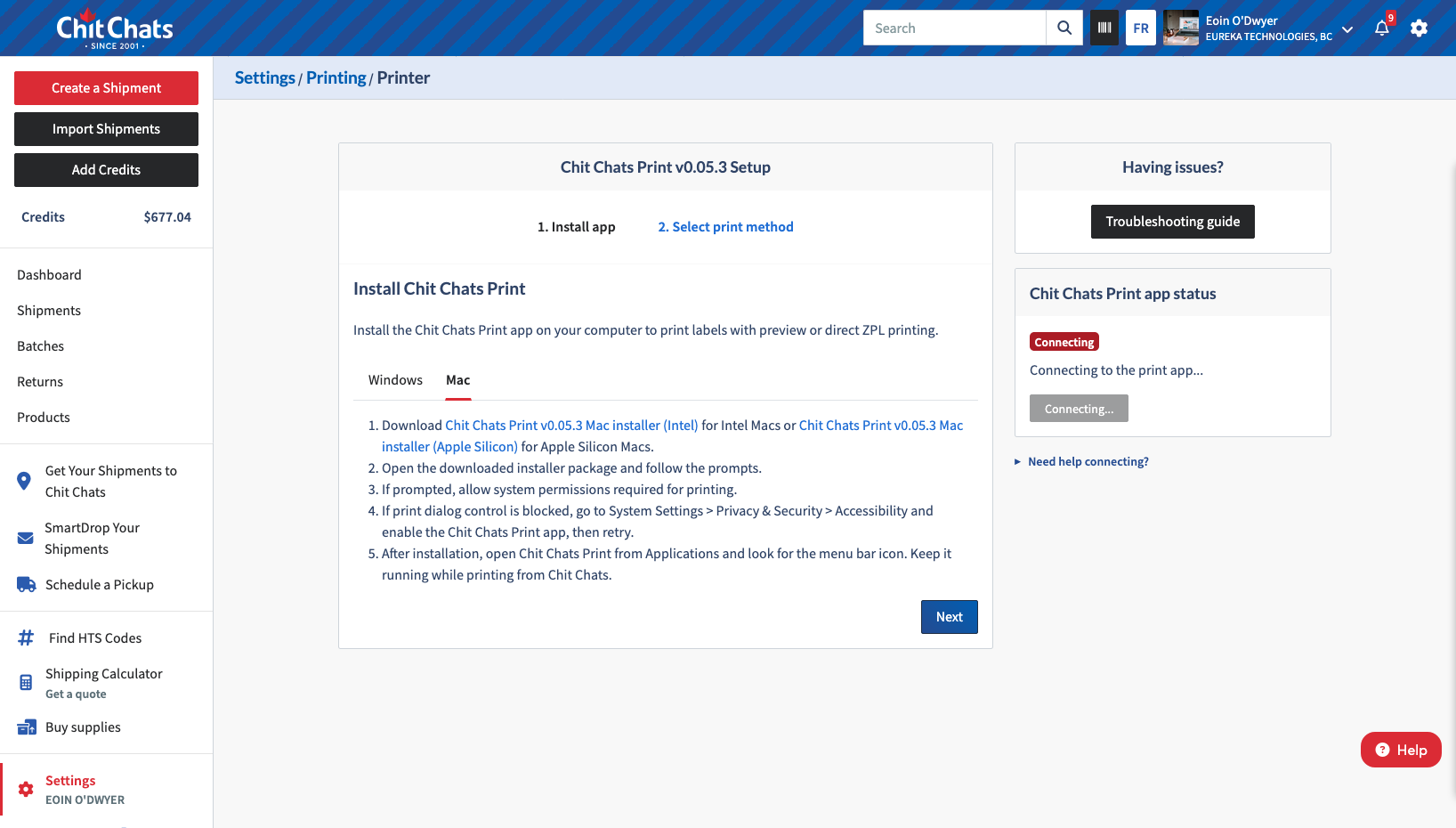 Note: If using a Mac and a verification error is received, "right click” then “open" to get around the warning. Please refer to the macOS support page for troubleshooting if the error does not disappear.
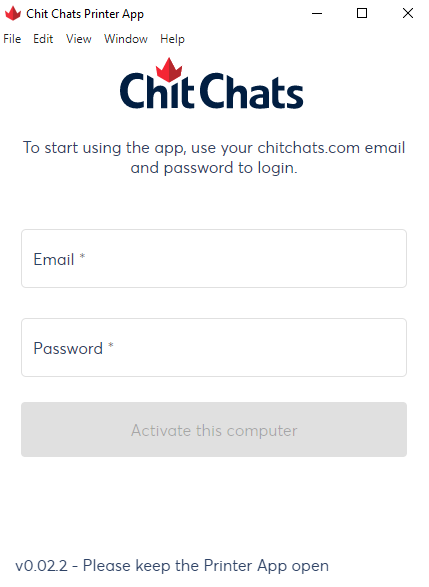
Once the app is installed, open the app and log in with your Chit Chats email and password.
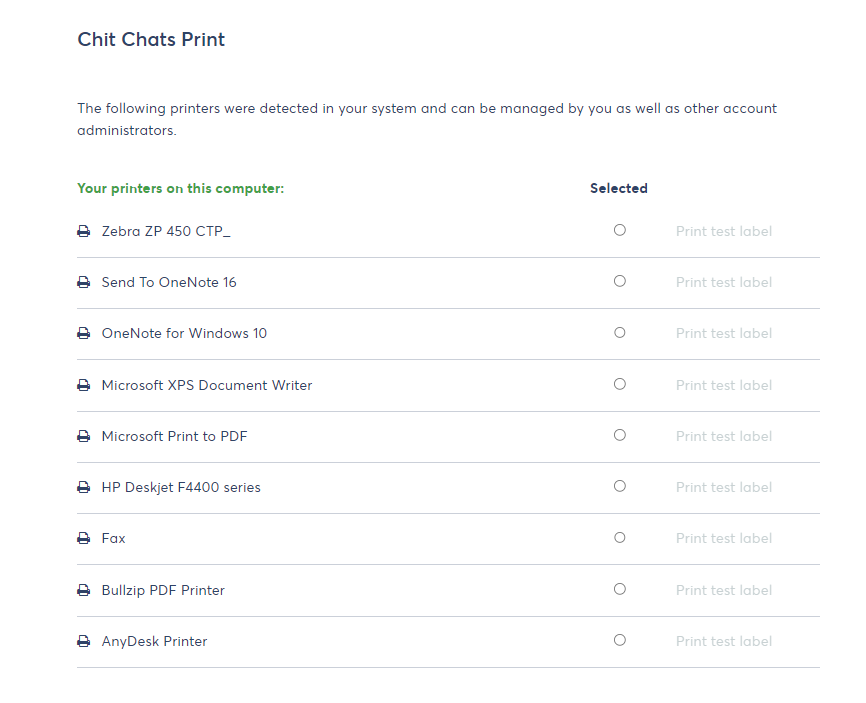
Select your printer and print test.
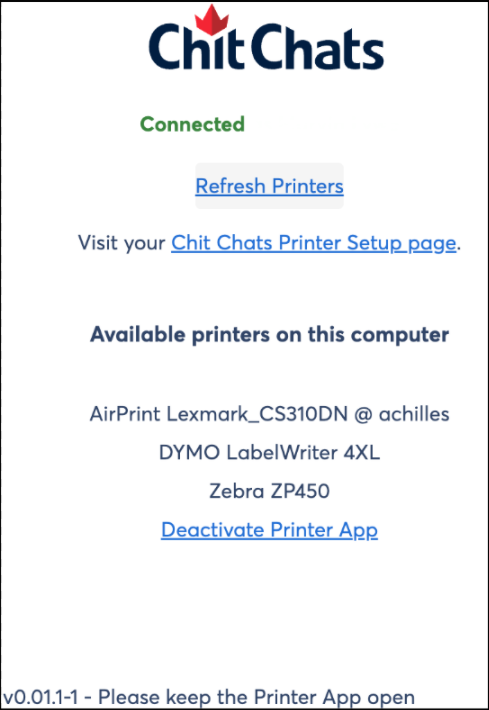
Once the above steps are complete the app will show you available printers and the printer it is currently using.
You are all set to print!
Allowing Local Network Access for the Chit Chats Printer App
Once you've installed the Chit Chats Printer App, make sure your browser allows Chit Chats to access devices on your local network. This permission is necessary for the Printer App to connect to your printer and function properly.
During setup, your browser may display a pop-up asking for permission to “look for and connect to devices on your local network.” Be sure to select Allow to continue.
What if you accidentally denied permission?
No worries! You can easily update your browser permissions. If you're using Google Chrome, follow these steps:
Open the Chit Chats website in Chrome.
Click the site controls icon to the left of the address bar.
Select Site settings.
Find Local network access and change the permission to Allow.
Return to the Chit Chats website and reload the page.
Try setting up your Printer App again.
Don't see the Local network access option?
If the option isn't available in your site settings:
Click Reset permissions in your Chrome site settings.
Return to the Chit Chats website and reload the printer setup page.
When Chrome prompts you to allow access to devices on your local network, select Allow.
You're all set! You can now continue setting up your Chit Chats Printer App.
If the above steps do not work for you, you may need our advance instructions.