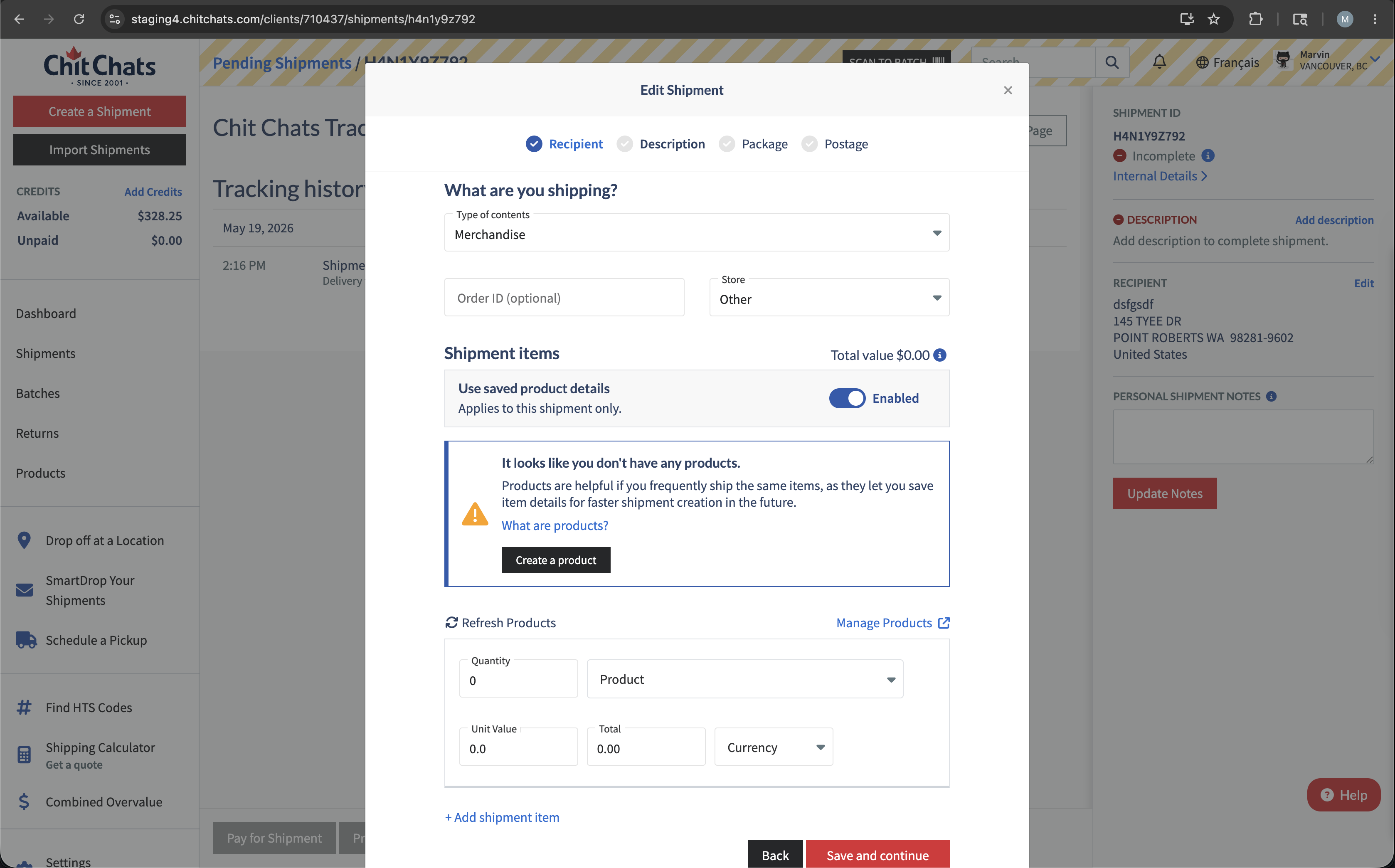
When manually creating shipments, you may be prompted to select from a list of products you’ve already created. This feature is great for those who import to the Chit Chats platform as it will automatically update your products from connected stores to customs-compliant versions! Creating products helps you save time by eliminating the need to re-enter product details.
If you ship one type of item infrequently, you can also disable this feature in your Shipping Settings, learn more below.
Table of Contents
How to get started?
We recommend creating your product list before manually creating shipments or importing your shipments.
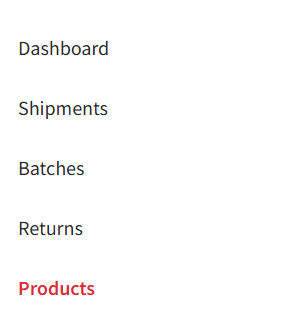
You can access your product list by navigating to the Products tab in the left menu of your dashboard.
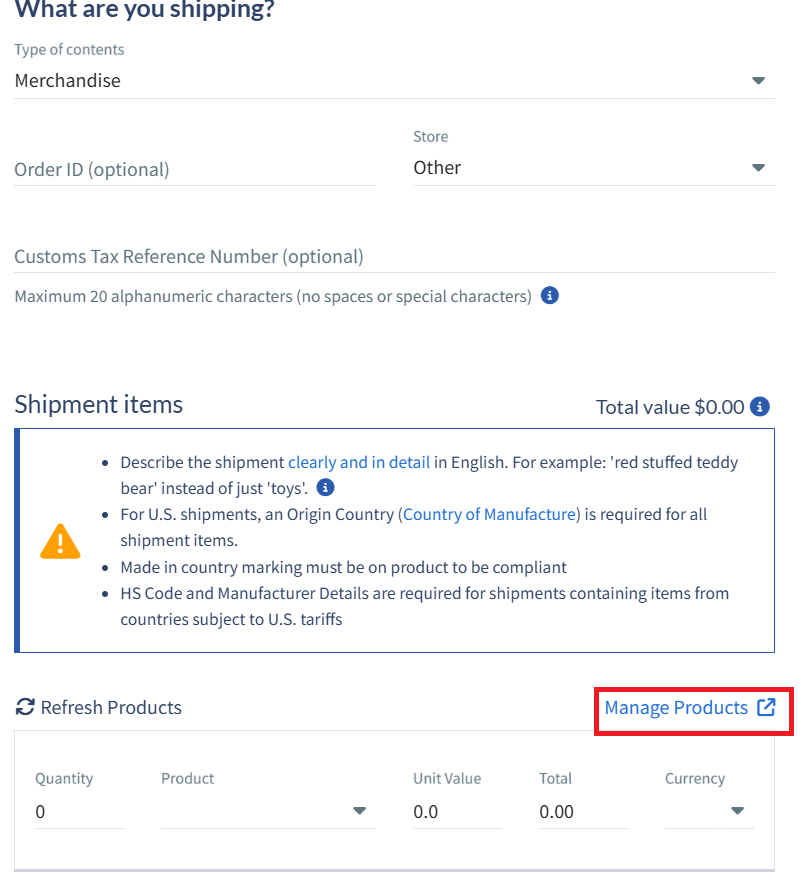
Alternatively, you can access this section directly from the description field while manually creating a shipment. This appears after entering the recipient information.
On the feature page, you will see the following:
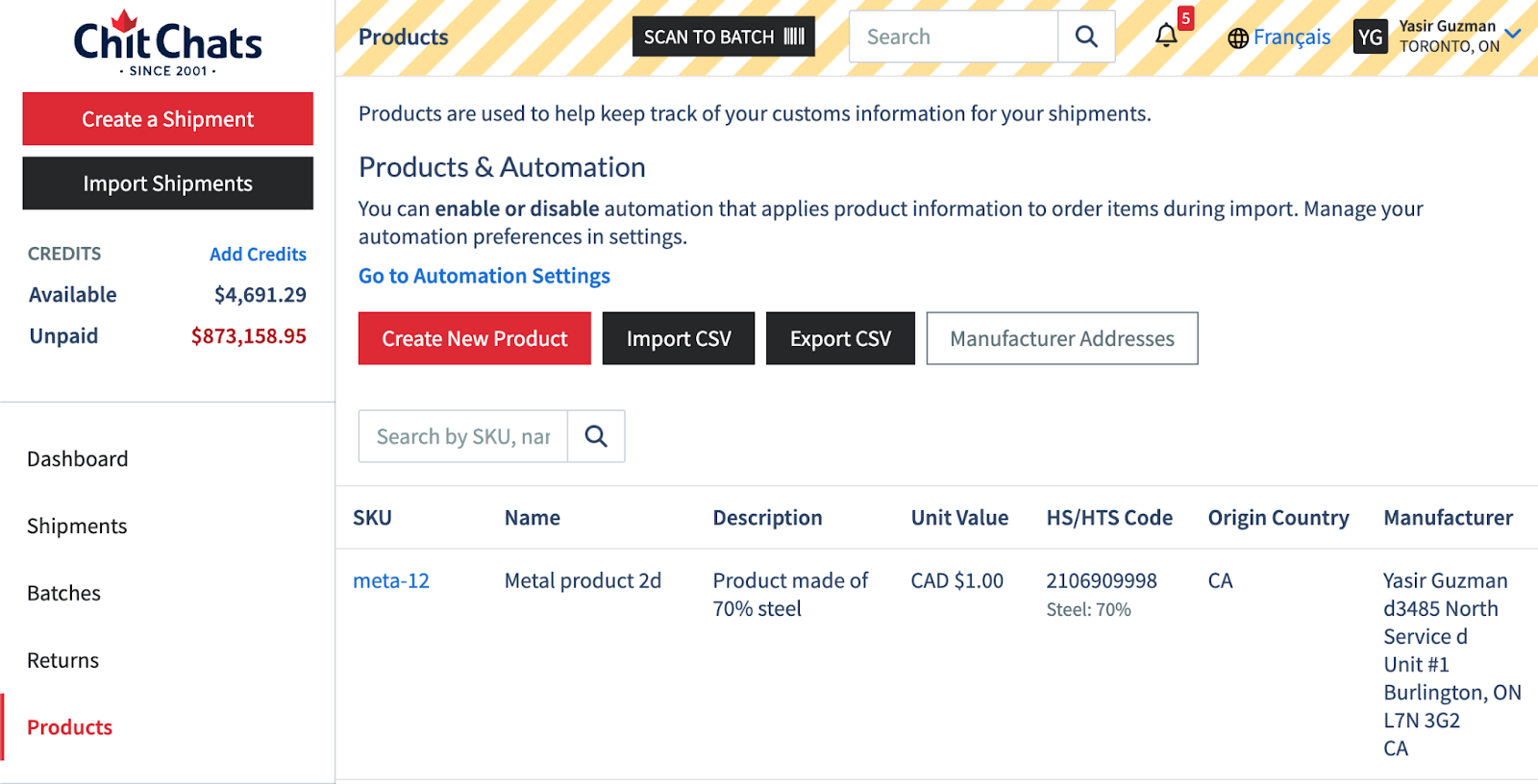
From this page, you can choose to manually create each product you plan to ship or bulk import your product list using a CSV file for faster setup.
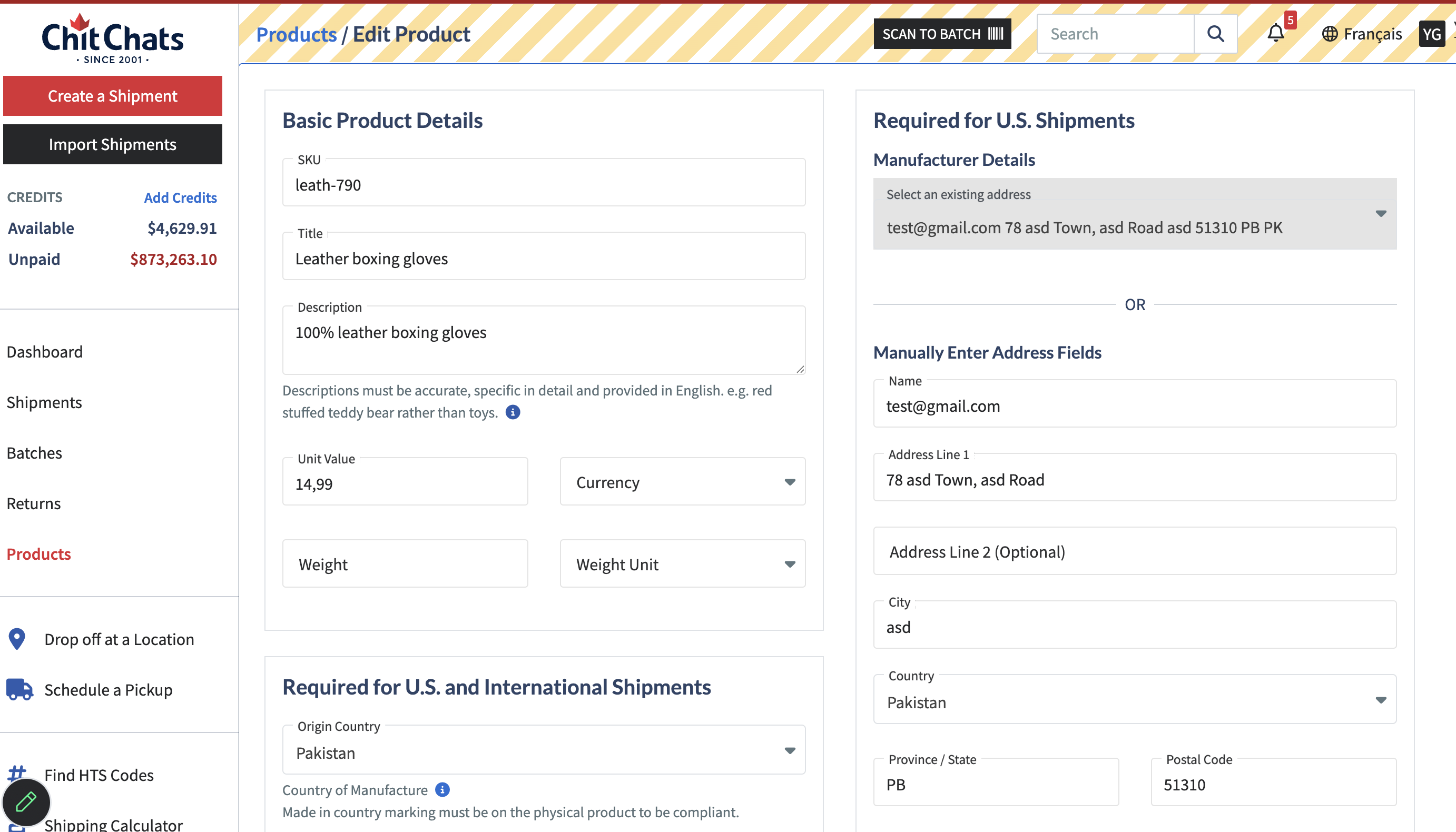
What Is Required When Creating a New Product?
Each product must have:
Lookup SKU (a unique identifier - if you don’t have a SKU you can easily create one)
Product Title
Lookup Description
All other fields are optional; however, if you ship to destinations that require additional details, you will need to update those fields accordingly. For example, shipping to the U.S. requires additional details like Country of Origin, HTS code and manufacturer information.
You can make these updates directly in the description section. Once you save your changes and return to your shipment, be sure to click Refresh Products, click away, then re-select the updated product.
Country of Origin - Required for U.S. shipping and International shipping
HTS code (10 digit) - Required for U.S. shipping
HS code (6 digit minimum) - Required for international shipping (non U.S. destinations)
Manufacturer Information - Required for USPS DDP postage (Chit Chats U.S. Edge, USPS Priority Mail, etc).
Note: You have the option of deciding whether you would like the value to be indicated in USD or CAD. If any conversions are required, it will be based on the date in which postage was purchased.
If a product is missing required information for a specific destination or postage type, the platform will notify you with an alert message. For example, if a product is selected without Manufacturer Information, you will be alerted when attempting to create U.S. postage. As a result, your available postage options will be limited/unavailable until the missing details are provided.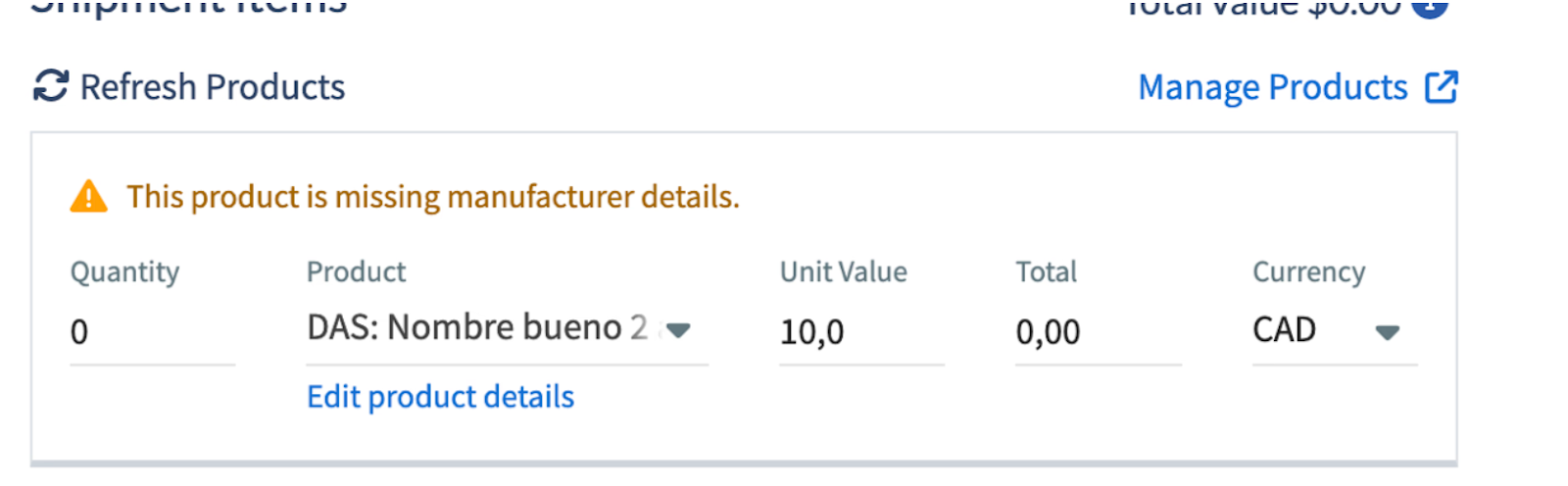
How to Manually Create a New Product?
Simply click on “Create New Product” and you will be directed to the following page:
Manufacturer Addresses
You may notice a “Manufacturer Addresses” section on the Products page. This feature allows you to save manufacturer details and easily autofill them from a dropdown menu when manually creating shipments.
Reminder: Manufacturer Information is only required for USPS DDP postage.
How to Bulk Import Your Product List
Before bulk importing, you must manually create at least one product.
Once that product is created:
Click “Export Products” to download a CSV file to your computer.
Edit the downloaded file with additional products
Import it back into the Chit Chats platform using the “Import Products” option.
How Does This Feature Work When Importing Orders (Automation)
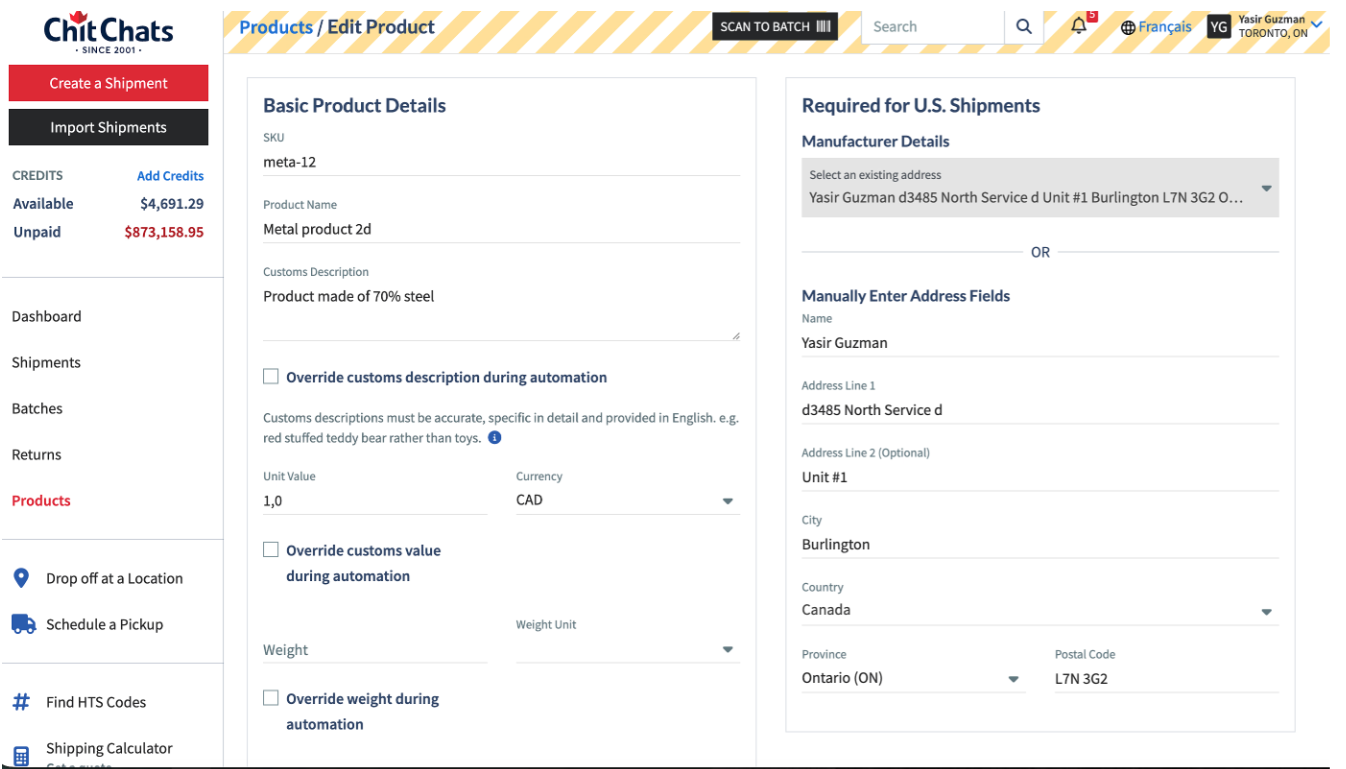
Any order item with a matching SKU will automatically pull in the product details you created, thus saving you time and ensuring accuracy.
To enable this, you must select the “Override [x] During Automation” checkbox, where [x] represents the specific fields that will be replaced once the import is complete and a matching SKU is found for the product.
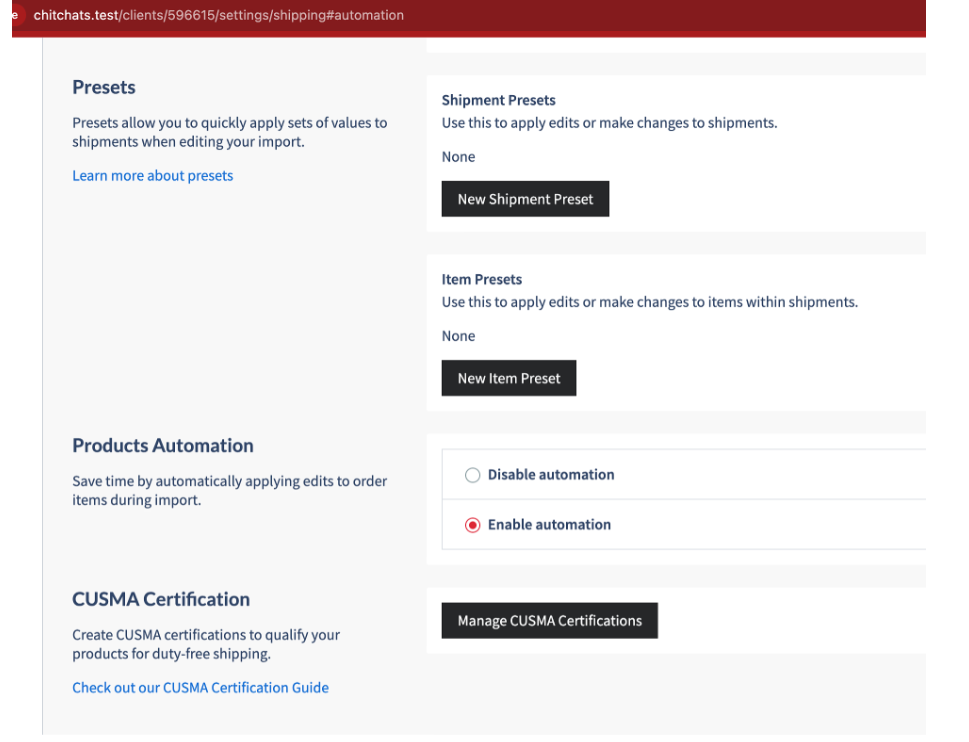
If you want to remove the option of matching product SKUs affecting your imports, you can disable this feature in your Shipping Settings.
Can I disable the Products Feature?
If you find that this complicates your workflow or prefer not to use it, you can disable it in your Shipping Settings. Disabling the feature allows you to manually enter product information for each shipment when creating them individually, giving you full control over the details.
In addition, you can use a toggle in shipment creation to switch between the Product Automation feature and the Shipment Item form without needing to navigate to User Settings.